How to Organize Shared Google Drive Files
You know the file exists. You remember someone shared it with you a few months ago. You may even remember roughly what it contained. You just cannot find it because the person who created it named it something that made perfect sense to them and absolutely none to you.
This is a small problem that can create a surprising amount of wasted time. Searching through shared files, opening documents one by one, and trying different combinations of keywords pulls your attention away from the work you actually need to get done. When that happens often enough, file organization becomes an operational issue rather than a minor inconvenience.
There is a simple Google Drive feature that can help you create your own search terms for shared files, even when you do not own the file and cannot rename it.
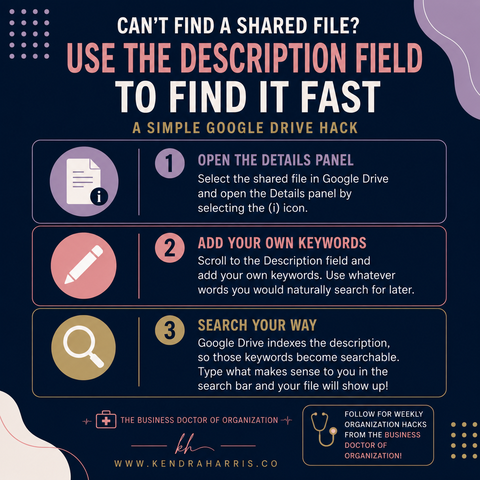
Use the Description Field to Add Your Own Keywords
When someone shares a file with you, you may not have permission to rename it. You can still add information that makes the file easier for you to locate later. Here’s how to do it:
Select the shared file and open the Details panel by selecting the (i) icon. You will select the (i) folder information and then the (i) details.
Scroll to the Description field at the very bottom and add your own keywords. Use whatever words you would naturally search for later or rename the file to what makes sense to you.
Since Google Drive indexes the description, those keywords become searchable meaning the next time you need to find the file, you can type what makes sense to you in the search bar.
Think about what you would naturally type into the Google Drive search bar six months from now. You might add the client's name, project name, topic, type of document, or another phrase you associate with the file. You can also use a description that helps you remember what the file actually is. The goal is simple: give yourself search terms that match the way you think about the document.
Use the Tools You Already Have More Strategically
You do not always need a new system to solve an organizational problem. Sometimes the solution is already sitting inside the tools your business uses every day. The Google Drive description field is a good example. A small addition can make shared files much easier to locate without asking someone else to rename their document or reorganize their folders.
The bigger lesson is worth carrying into your other systems. When something repeatedly takes longer than it should, look for the friction point. Then ask whether an existing process or tool can be adjusted to support the way you and your team actually work.
Those small improvements create a business that is easier to manage, easier to delegate, and easier to operate as it grows. If you are seeing the same kinds of friction in your files, workflows, delegation, or day-to-day operations, continuing the conversation can help you identify where a practical systems improvement would make the biggest difference. You can use the links below to connect with me and start that conversation.
Let’s connect on LinkedIn!